
Industry News - 14th January 2026
You can access the Companies House ID verification link here. This link will take you to the GOV.UK One Login web service page ‘Verify your identity for Companies House’.
Please read through the ‘What you need’ instructions carefully beforehand to ensure you have everything available to fully complete the identity check. The whole process is very straightforward and should take no longer than 15 minutes per ID check.
As part of the ID verification, you will need a smartphone in order to download the GOV.UK One Login app which is an essential part of the process. You will use the app to take pictures of your photo ID and complete facial recognition. The app works in conjunction with the GOV.UK website so you will be using both the app and website at the same time.
Please follow the on-screen instructions closely as you progress through the stages of verification which will include completing certain security questions. Once fully completed, you will receive a notification on-screen that the identity verification is complete and you will be given your unique Companies House personal code.
Once you have this code, please email it to us at admin@perrigoconsultants.co.uk so that we can add it to your client record, as this will be required for company filings such as confirmation statements, appointments, director and shareholder amendments.
The code is personal to you, not your company or a company you work for. If you are a director and/or PSC, we will use your Companies House personal code to connect your verified identity to Companies House. This is a mandatory requirement, and we will be unable to complete any future filings for your company without your personal code.
Any questions, please do not hesitate to contact us.
Step by step guide on how to verify your identity on companies house:
1. Firstly, navigate to the webpage using the link above and read through the ‘What you need’ instructions to ensure you have the correct documentation available to start the ID check and then click on the green ‘Verify your identity’ button.
2. On the next page, you will be asked to sign in using your Gov.UK One Login or you can create a login by clicking the green button
3. If you do not already have a login, you can create one here.
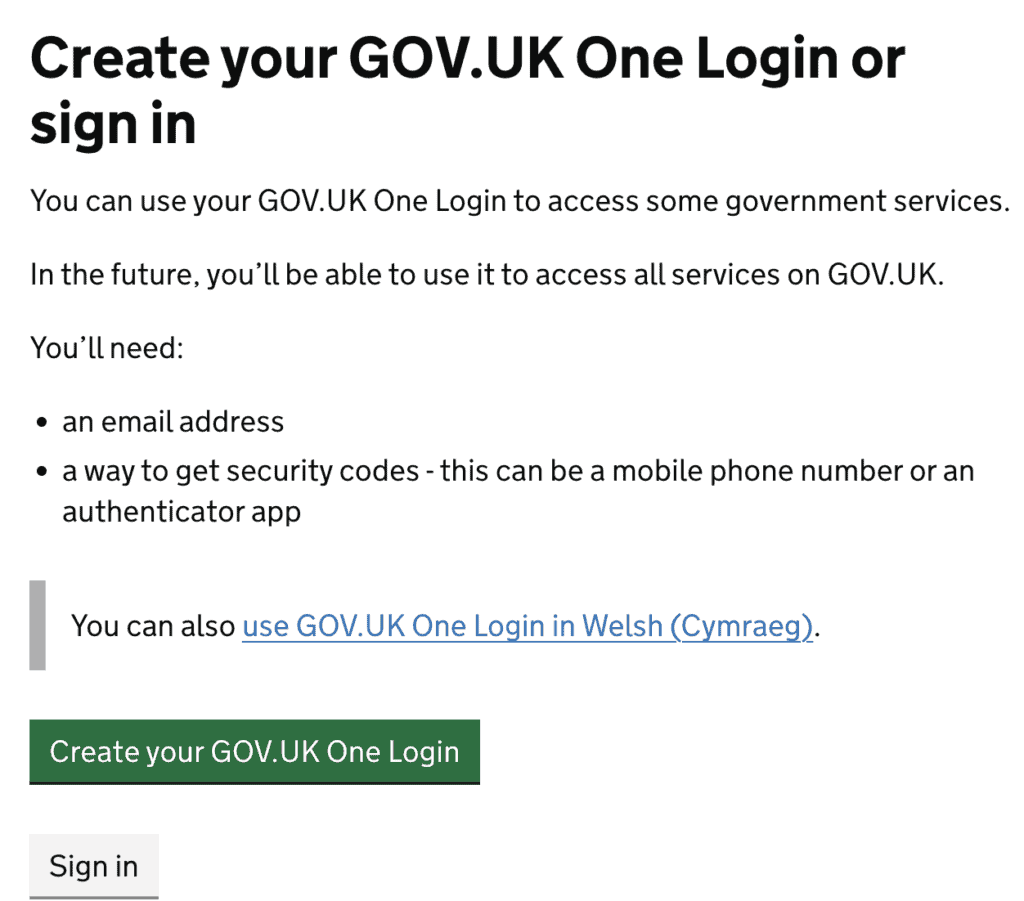
4. You will be asked to enter a username and password and a mobile phone number as part of the security checks. Once this information has been added, a code will be sent to your phone. Enter the code and click continue.
5. On the next screen, you will be asked if your identity has already been verified. Click No and continue.
6. On the following screen you will be asked to verify your identity using one of three routes.
Route 1: Use the GOV.UK mobile phone app
Route 2: Verify online without the mobile phone app
Route 3: Verify in person
We recommend ‘Route 1’ using the GOV.UK mobile phone app, as this is the quickest way to verify and the remainder of the instructions are based on using this option, which allows you to download an app that scans your biometric ID. You can remove the app when you have finished.
Click continue to proceed to the next screen.
7. You will be asked to confirm where you live.
8. On the next screen, you will be asked to confirm if you have one of the following types of ID. Click Yes.
9. On the following screen, you will be asked if you are on a computer or tablet. (Please note the following instructions are given once you have chosen the first option – Yes – I am on a computer or tablet.)
The instructions may vary if you use the second option – No – I am on a smartphone.
Click the appropriate option and press continue.
10. After choosing ‘yes – I am on a computer or tablet’, you will see this page with information about the type of phone required. Choose the appropriate option and click continue.
11. The next screen will ask you to download the GOV.UK One Login app to your device.
12. As you download the app, at the same time, you will see a circle on your screen rotating around whilst the software is waiting for you to open the app. It is important to keep the page open while you do this.
13. The next stage will require you to take a photo on your phone of your appropriate ID.
• Follow the instructions as they appear on your phone …
• Skip analytics
• Sign in using GOV .UK One Login
• Check phone for security code
• Enter code
• Use biometrics with this application
• Press continue
Do you have a UK Passport, resident card, or driving licence?
• Confirm you want to continue (the instructions which follow are for a driving licence; a resident card or passport option may vary slightly)
• Position your ID document and take a photo of the front and then click submit
• Take a photo of the back of your document and then click submit
• Scan your face with your selfie camera
• Press start and when completed
• Return to the GOV .UK screen on your computer or tablet
• The circle stops rotating and a complete message appears
• Press continue
• Check your photo ID details on screen and then click yes to confirm
• Click the check box to allow DVLA to check your driving licence and click continue
14. There will be a short wait whilst the check is completed and then you should see this message. Click continue.
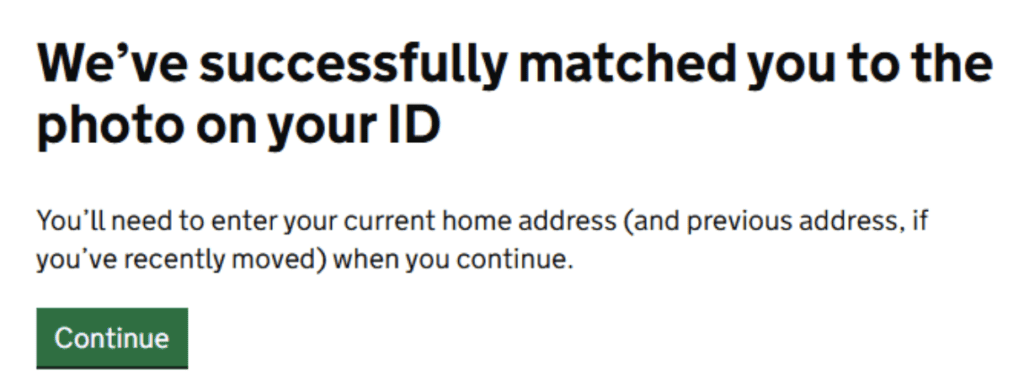
15. You will then see this message.
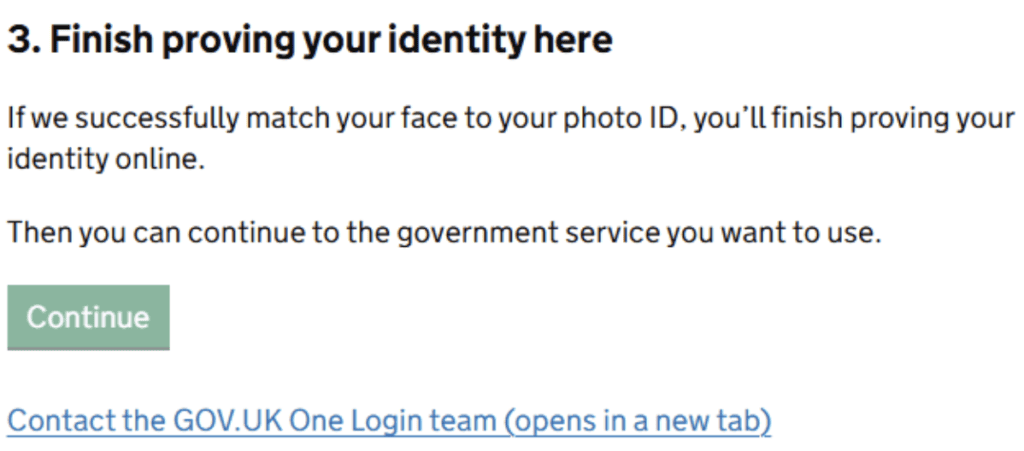
16. The next screen is a security check. Please select continue and wait.
17. After your details have been checked, you should see the following screen, if successful. Click Continue to the service.
18. This is the final stage of the process. Please keep your personal code safe as it will be needed to make filings with Companies House in the future.
If you need support with any Chartered accounting services or Tax Advisor services, please contact us today by email or by calling 01299488860.



